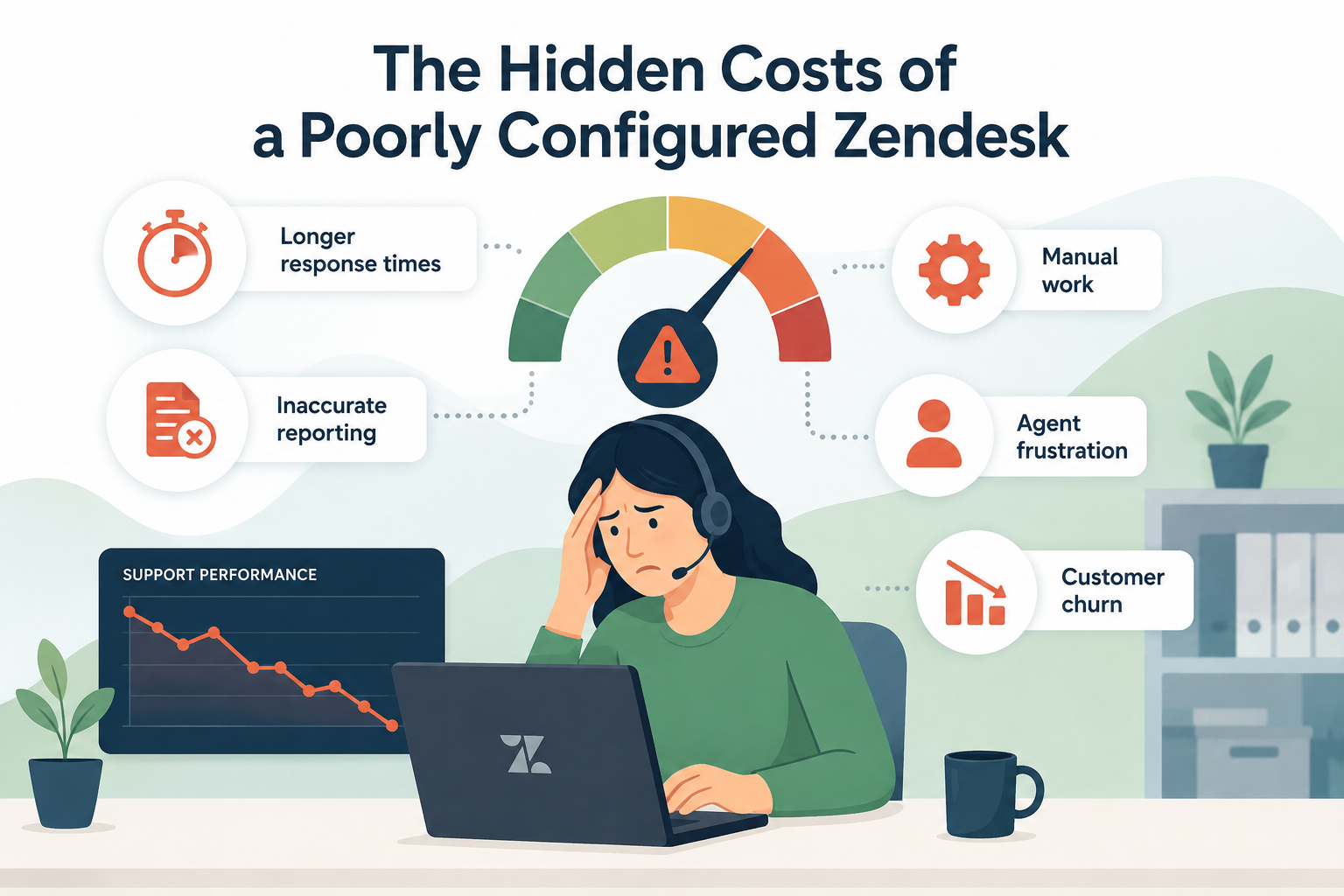
Making changes in Zendesk can feel a bit like defusing a bomb, one wrong move and suddenly tickets aren’t routing, automations are misfiring, or agents are stuck in chaos.
Whether you're updating triggers, launching a new workflow, or rolling out omnichannel routing, testing safely is critical. The good news: with the right approach, you can confidently make changes without disrupting your live environment.
Here’s how to do it.
Why Testing in Zendesk Is Risky (If Done Incorrectly)
Zendesk is highly interconnected. A single change can impact:
- Triggers and automations
- Views and SLAs
- Routing and agent capacity
- Customer experience
Unlike traditional development environments, Zendesk doesn’t offer a fully native “sandbox-first” mindset for every plan. That means testing directly in production can lead to:
- Misrouted tickets
- Broken workflows
- Delayed responses
- Poor customer experiences
That’s why having a structured testing strategy is essential.
1. Use a Sandbox Environment (If Available)
If your Zendesk plan includes a sandbox, use it, every time.
A sandbox allows you to:
- Test triggers, automations, and workflows safely
- Validate business rules before deployment
- Train team members without risk
Pro tip:
Sandboxes are not always perfectly in sync with production. Before testing:
- Refresh your sandbox
- Verify key configurations (groups, tags, fields)
2. Clone Before You Change
Never edit a critical trigger, automation, or workflow directly.
Instead:
- Clone the existing rule
- Make your changes in the cloned version
- Disable the original (only when ready)
- Activate the updated version
This gives you a quick rollback option if something goes wrong.
3. Test with Internal Conditions
Before exposing changes to real customers, limit the impact.
You can do this by:
- Adding a condition like:
- Ticket requester email contains your domain
- Specific test tag (e.g., test_zendesk_update)
- Assigning tickets to a test group
This ensures only internal or controlled tickets are affected during testing.
4. Use Test Tickets Strategically
Don’t rely on a single test, create multiple scenarios.
Build test cases such as:
- Different ticket forms
- Various priority levels
- Multiple channels (email, chat, web)
- Edge cases (missing fields, unusual inputs)
Document expected outcomes before testing so you can clearly validate success.
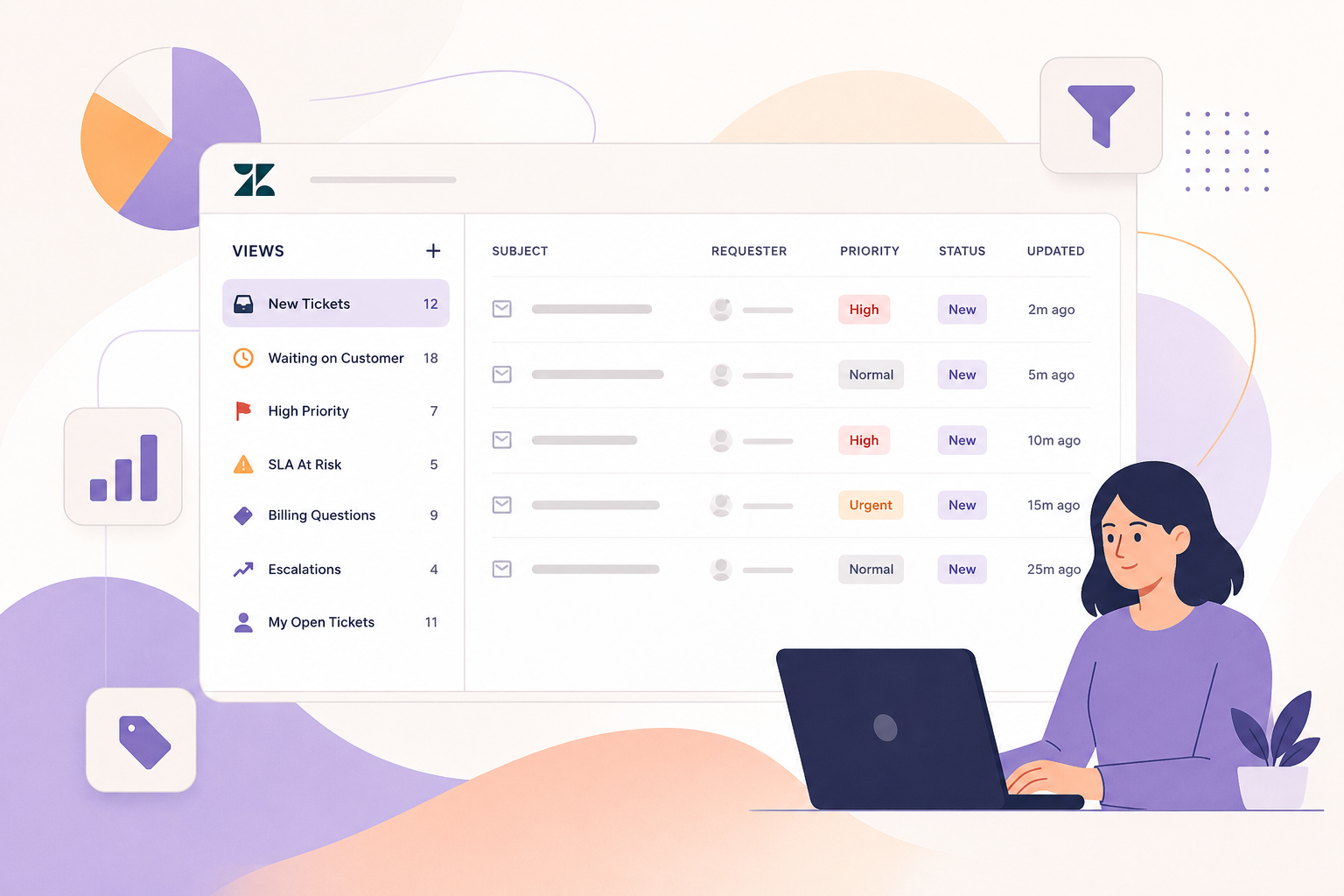
5. Leverage Views for Visibility
Create temporary views to monitor your test tickets in real time.
For example:
- “TEST – New Routing Logic”
- “TEST – SLA Updates”
This allows you to:
- Quickly spot issues
- Track ticket movement
- Validate agent experience
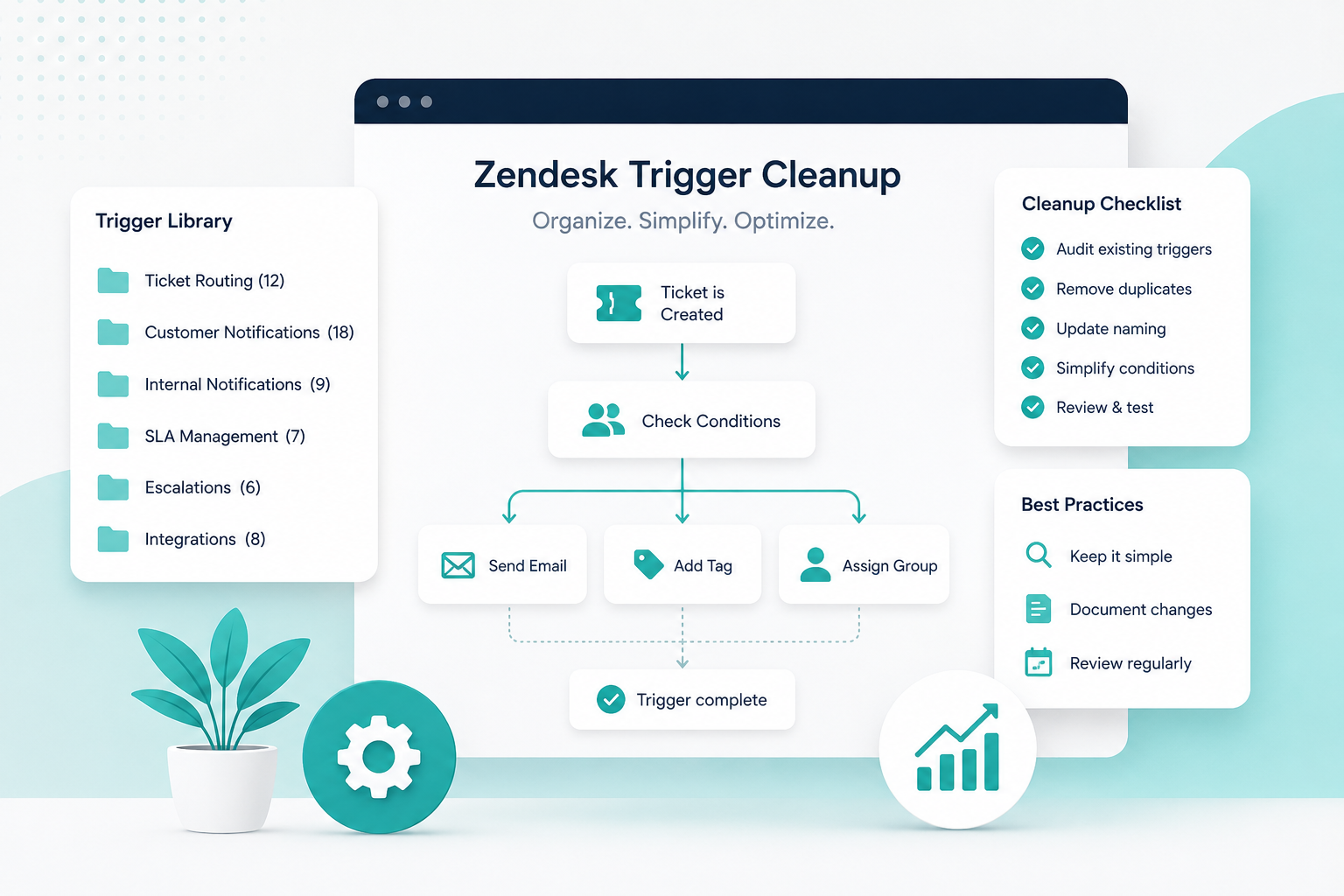
6. Monitor Triggers and Automations Closely
After enabling a change:
- Watch ticket events in real time
- Review ticket audit logs
- Confirm triggers are firing in the correct order
Zendesk executes triggers sequentially, so even small logic changes can have unintended downstream effects.
7. Roll Out in Phases
Avoid launching changes to your entire support team at once.
Instead:
- Start with a small group of agents
- Test during low-volume hours
- Gradually expand rollout
This reduces risk and makes issues easier to isolate.
8. Have a Rollback Plan (Always)
Before activating any change, ask yourself:
“If this breaks, how fast can I undo it?”
Your rollback plan might include:
- Re-enabling the original trigger
- Removing new conditions or tags
- Reverting routing settings
The faster you can recover, the lower the impact.
9. Document Everything
Testing isn’t just about validation, it’s about repeatability.
Keep track of:
- What was changed
- Why it was changed
- How it was tested
- What the results were
This is especially important for growing teams or during admin handoffs.
10. Partner with Experts When Needed
Zendesk can get complex fast, especially when scaling workflows or implementing omnichannel routing.
Working with an experienced partner like SupportPie ensures:
- Best-practice configurations
- Reduced risk during changes
- Faster, more reliable implementations
Final Thoughts
Testing in Zendesk doesn’t have to be stressful, or risky.
With the right approach:
- You protect your customer experience
- Empower your support team
- Build confidence in every change you deploy
A little structure goes a long way in preventing major disruptions.
Need help optimizing or safely scaling your Zendesk instance?
SupportPie specializes in building, testing, and deploying Zendesk solutions that work, without the headaches.